

Office printers are the heartbeat of workplace productivity—until they stop working. From stubborn paper jams to mysterious “offline” errors, daily disruptions can slow down your team and frustrate staff. Understanding the most frequent printing problems and solutions in 2026 allows office managers to apply quick fixes before ever needing to call IT.
At Cal-Imaging Specialists in Calgary, we believe many printing issues can be resolved quickly with the right knowledge. Here is your practical 2026 troubleshooting guide to keeping your workflow moving.
1. The Stubborn Paper Jam
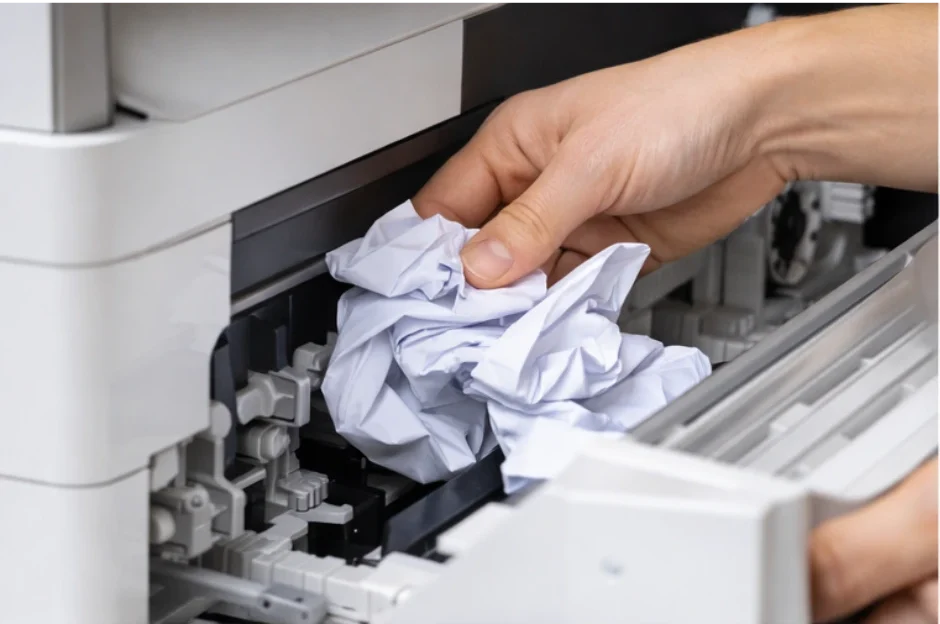
Paper jams remain the most common of all printing problems and solutions. In 2026, sensors are more sensitive than ever.
-
The Solution: Always pull the paper in the direction of the paper path. Pulling backward can align gears incorrectly or damage delicate rollers. Check for tiny scraps of paper left behind, as even a sliver can trigger a continuous error.
2. The Dreaded “Printer Offline” Status
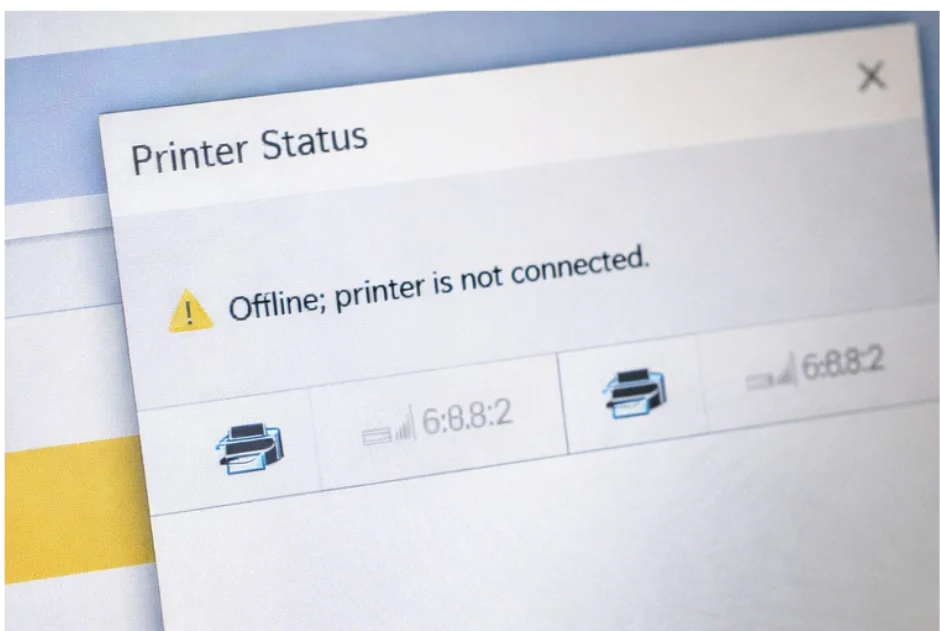
This is especially common for Windows 11 and 12 users. Usually, the computer and printer have simply stopped “talking” to each other due to a network timeout.
-
The Solution: Go to Settings > Bluetooth & Devices > Printers & Scanners. Select your printer and ensure “Use Printer Offline” is unchecked. Often, a simple restart of the “Print Spooler” in your computer’s services menu will force a reconnection.
3. “Ghosting” (Faint Images from Previous Jobs)
Ghosting occurs when a faint image of a previous print job appears on your current page. This is usually a hardware issue rather than a software glitch.
-
The Solution: This is often caused by a worn-out drum unit or a faulty fuser. Check the life expectancy of your consumables. If the drum is nearing its end, replacing it will usually solve the “haunting” immediately.
4. Smudged or Streaky Lines
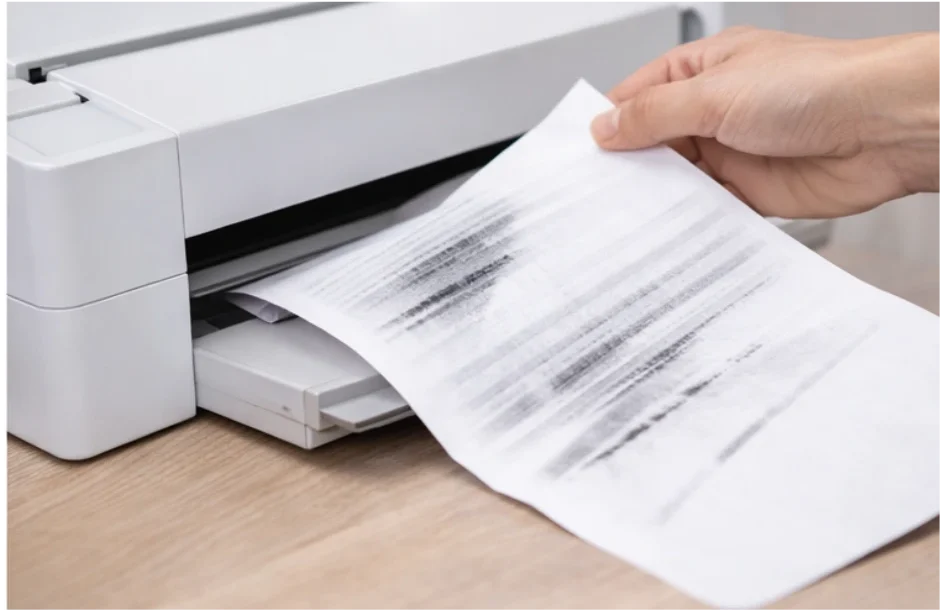
If your documents look like they’ve been dragged through wet ink, your printer’s internal components likely need a cleaning.
-
The Solution: For laser printers, run a “Cleaning Page” from the maintenance menu. If streaks persist, the corona wire (usually a small green tab on the drum) may need to be slid back and forth to clear dust.
5. Frustratingly Slow Printing Speeds
The Problem: Large PDF files or high-res graphics are taking minutes to print a single page.
The Solution:
-
Standardize Quality: Switch print settings from “Best/High” to “Standard” or “Draft.”
-
Go Grayscale: Printing in B&W is significantly faster than processing color data.
- Clear the Memory: High-volume offices should consider a RAM upgrade for their multifunction units to handle large data packets.
6. Printer Not Connecting to Wi-Fi
The Problem: Wireless printers drop connection during peak office hours.
The Solution:
-
Reboot the Hub: Restart both the router and the printer to refresh the handshake.
-
Firmware Update: Manufacturers often release patches to fix Wi-Fi 7 or 5G connectivity bugs.
-
Hardwire: For critical office machines, a wired Ethernet connection is always the most reliable solution.
7. Paper Feeding Multiple Sheets at Once
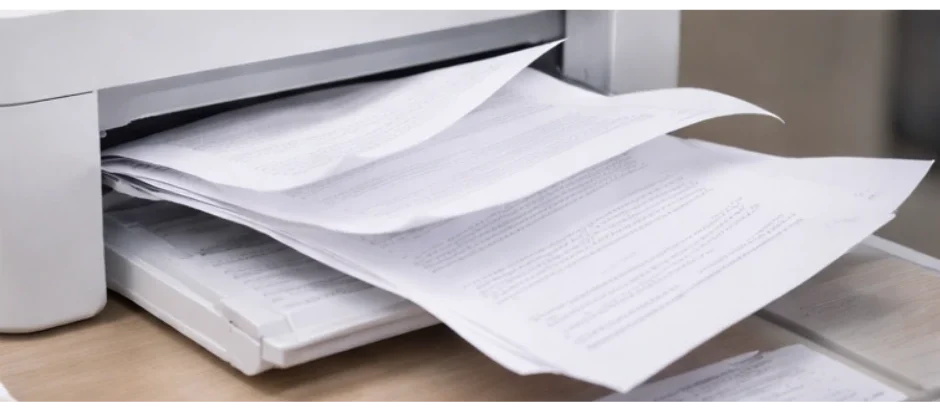
The Problem: The printer pulls a “double” or “triple,” causing a jam or misaligned print.
The Solution:
-
Fan the Stack: Static electricity makes sheets stick together. Fan the paper before loading.
-
Don’t Overfill: Never fill the tray past the “Max” line.
-
Roller Wear: If this happens constantly, your pickup rollers are likely worn and need a 5-minute replacement by a pro.
8. Creased or Wrinkled Pages
This is often a sign of humidity or poor-quality paper.
- The Solution: Paper absorbs moisture from the air, causing it to “wave.” Store your paper in a cool, dry place and always fan the stack before loading it into the tray to ensure the rollers can grab a single, flat sheet.
9. Non-Genuine Toner Warnings
Many modern printers in 2026 are programmed to recognize third-party cartridges, which can sometimes lead to “Incompatible” errors.
-
The Solution: Ensure your firmware is up to date. While we always recommend OEM (Original Equipment Manufacturer) toner for the best results, sometimes a simple “Hard Reset” of the printer can bypass minor chip communication errors.
10. Unusual Mechanical Noises
The Problem: Grinding, clicking, or squealing sounds during a print cycle.
The Solution:
-
STOP Immediately: Turn the machine off. Forcing it to run while making these sounds can turn a $100 repair into a $1,000 replacement.
-
Inspect: Look for small objects (staples, paper clips) that may have fallen into the feed.
-
Schedule Service: Grinding usually means a gear or motor is failing.
When to Call for Professional Support
While this guide covers the most common printing problems and solutions, hardware failures or deep mechanical issues require a specialist’s touch. At Cal-Imaging Specialists, we provide:
-
Expert Support: Maintenance and repairs for top brands like HP, Canon, and Ricoh.
-
Calgary-Based Reliability: Our local technicians minimize your downtime with fast response times.
-
Comprehensive Care: Ongoing service is included with our managed print services and leasing programs.
Most daily office interruptions can be resolved quickly with the right troubleshooting steps. Understanding common printing problems and solutions empowers office managers to act fast and reduce workflow disruptions.
For persistent or complex issues, Cal-Imaging Specialists is your trusted local partner—providing expert support long after the sale.